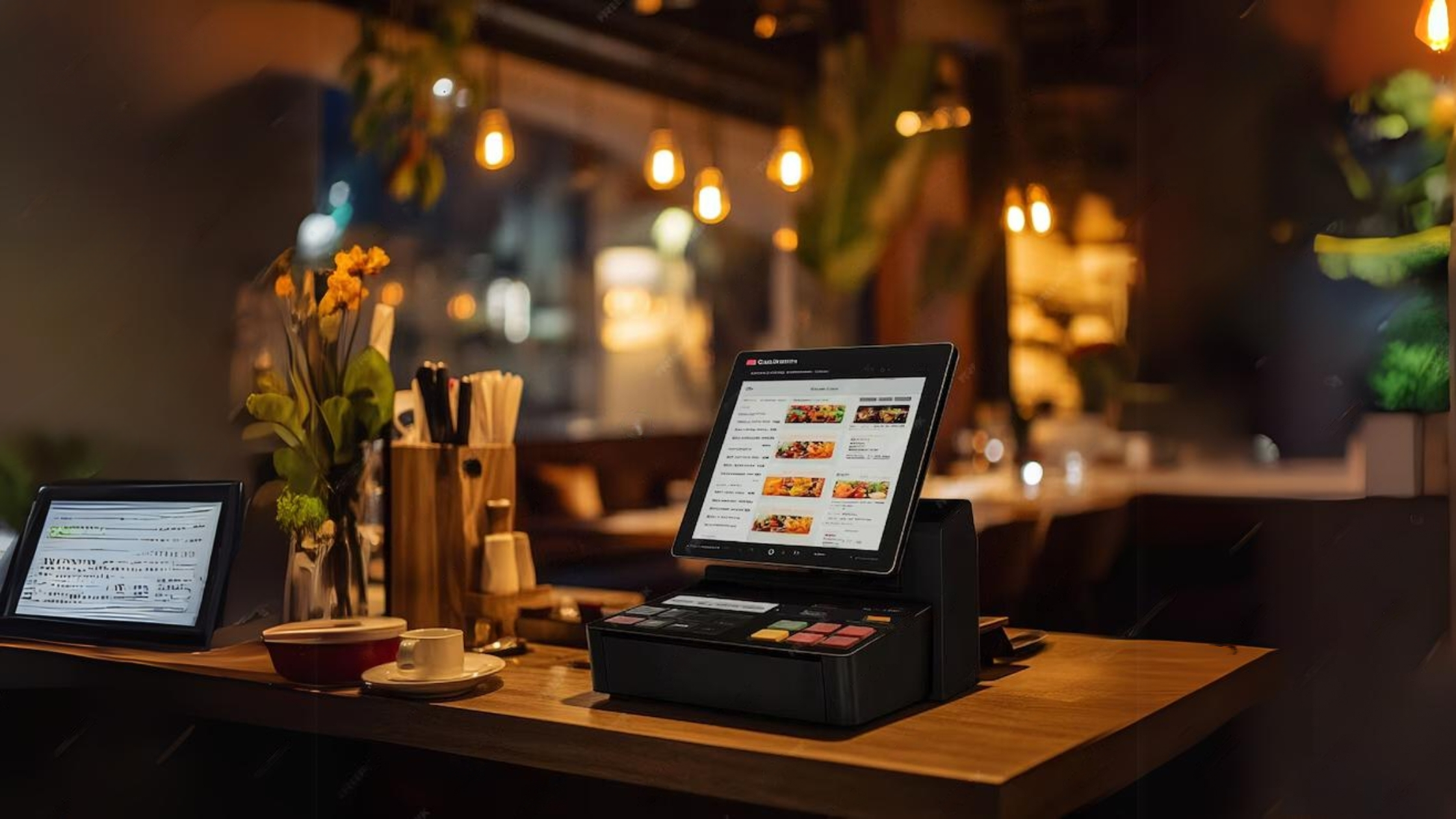
Kitchen Display Systems for Restaurants: The Independent Owner's Complete KDS Guide
You've watched it happen a hundred times: a paper ticket gets smudged, lost under the heat lamp, or misread by a line cook during a Saturday rush. The result is a remade dish, a frustrated table, and a few dollars of margin gone. A kitchen display system (KDS) eliminates that chain of events entirely — and it's no longer just for fast-food chains with deep pockets.
Cloud-based KDS solutions have made this technology accessible to independent restaurants of every size. The global KDS market was valued at roughly $470–520 million in 2024 and is growing at a compound annual rate of 6–12%, driven largely by independent operators who are finally making the switch from paper to digital.
This guide covers everything you need to know: what a KDS is, why it matters, how to choose the right one, and how to implement it without disrupting your service.
Table of Contents
- What Is a Kitchen Display System?
- KDS vs. Kitchen Printer: Which Is Right for You?
- Key Benefits of a KDS for Independent Restaurants
- How a KDS Works: The Order Flow Explained
- Choosing the Right KDS: What to Look For
- How to Implement a KDS Without Disrupting Service
- Common KDS Mistakes to Avoid
- How TableSync Fits Into Your Tech Stack
- FAQ
What Is a Kitchen Display System?
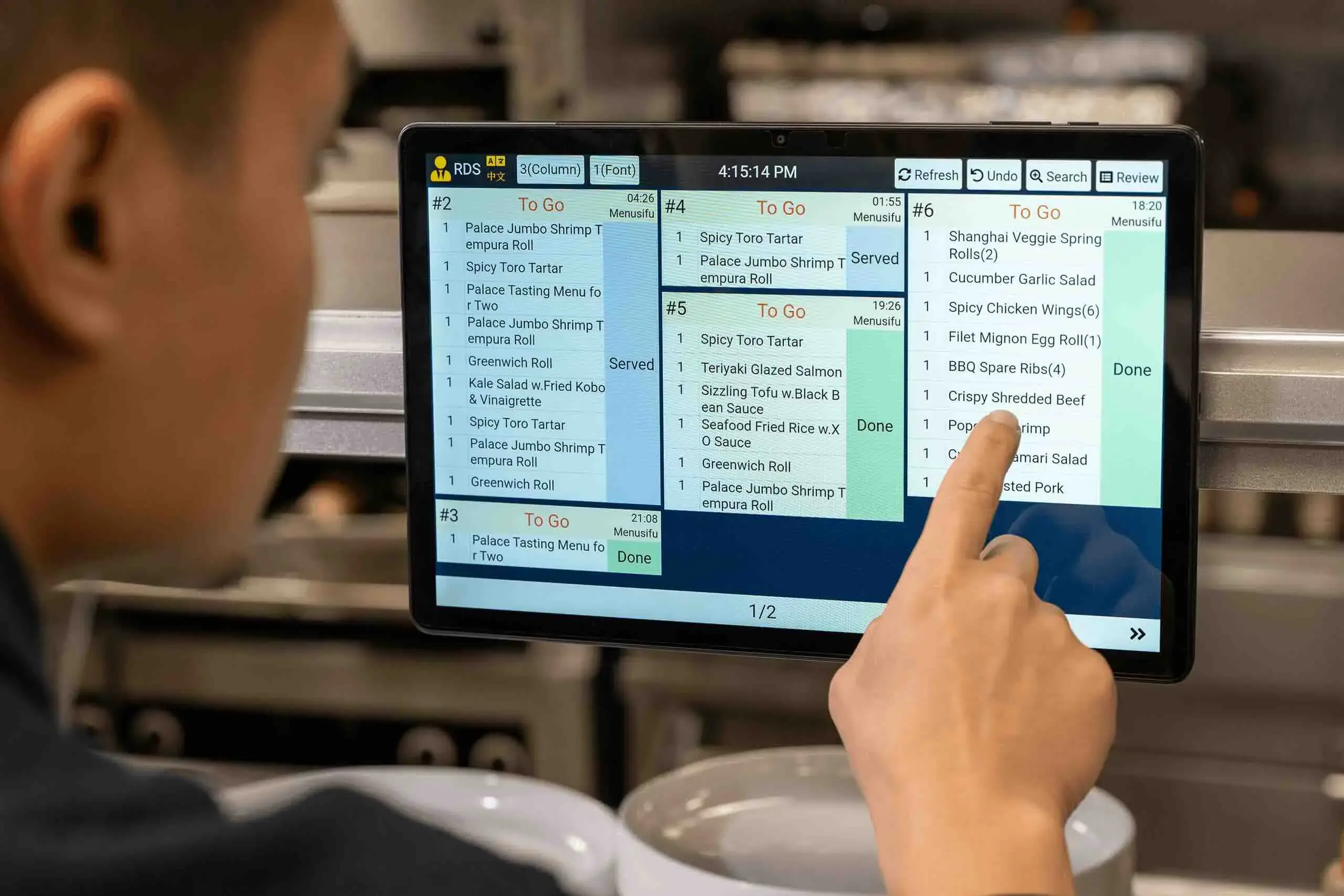
A kitchen display system is a digital screen — or set of screens — mounted in your kitchen that receives orders directly from your point-of-sale (POS) system and displays them in real time for your kitchen staff. Instead of a printer spitting out a paper ticket, the order appears on screen the moment a server rings it in or a customer places an online order.
Modern KDS platforms do far more than just display orders. They:
- Route orders to the correct station (grill, fryer, salad, expo) automatically
- Color-code tickets by urgency or elapsed time so cooks know what to prioritize
- Track prep times and generate performance reports
- Aggregate orders from multiple channels — dine-in, takeout, delivery apps — into a single view
- Alert staff when a ticket is approaching or exceeding target prep time
For independent restaurants juggling dine-in tables, a busy takeout window, and two or three delivery platforms simultaneously, a KDS acts as the central nervous system of the kitchen.
KDS vs. Kitchen Printer: Which Is Right for You?
Before committing to a KDS, it's worth understanding how it compares to the kitchen printer you may already have.
| Feature | Kitchen Printer | Kitchen Display System |
|---|---|---|
| Order visibility | One ticket at a time | All active tickets on screen simultaneously |
| Ticket loss risk | High (paper can be lost, wet, or burned) | None |
| Order routing | Manual (staff sorts tickets) | Automatic (routes to correct station) |
| Prep time tracking | None | Real-time, with alerts |
| Multi-channel aggregation | Limited | Yes — dine-in, online, delivery |
| Ongoing cost | Paper, ink, maintenance | Software subscription |
| Upfront cost | Low | Moderate (hardware + software) |
| Staff learning curve | Minimal | 1–2 service shifts |
The verdict: Kitchen printers are cheaper to start and require almost no training. But for any restaurant doing more than 50–75 covers a night — or managing multiple order channels — the operational gains from a KDS quickly outweigh the cost difference. Many operators report that a KDS pays for itself within three to six months through reduced food waste and labor savings alone.
Some restaurants run a hybrid setup: KDS screens at primary cooking stations with a printer at the expo window for final plating reference. This is a practical middle ground if your team is resistant to going fully digital.
Key Benefits of a KDS for Independent Restaurants
1. Faster Ticket Times
Digital tickets eliminate the manual sorting, reading, and re-reading of handwritten paper. Studies and operator case studies consistently show prep-time reductions of 15–25% after KDS implementation. During a busy Friday dinner service, shaving even 10 minutes off your average ticket time can mean turning an extra table or two.
2. Fewer Order Errors
A KDS displays every modifier, substitution, and allergen note in clear, legible text — automatically. Restaurants report a 30–40% reduction in order errors after switching from paper. Fewer errors mean fewer remakes, less food waste, and happier guests who are more likely to return.
3. Lower Operating Costs
Thermal paper for kitchen printers costs $50–60 per case, and that's before factoring in printer maintenance and replacement. A KDS eliminates that recurring expense. Cloud-based KDS software typically runs $20–$60 per month per screen — often bundled into existing POS subscriptions — making the math straightforward.
4. Real-Time Performance Data
Unlike paper tickets, a KDS captures data on every order: when it was placed, when it was bumped, and how long it took. That data lets you:
- Identify which stations are bottlenecks during peak hours
- Spot menu items that consistently take longer than expected
- Adjust staffing levels based on actual prep-time patterns
- Set realistic ticket-time targets and hold your team accountable
5. Seamless Multi-Channel Order Management
If you're taking orders from your POS, an online ordering platform, DoorDash, Uber Eats, and a phone line, your kitchen is managing five different order streams. A KDS with multi-channel integration pulls all of those into a single display, so your line cook sees one unified queue — not five separate piles of paper.
6. Better Front-of-House and Back-of-House Communication
Many KDS platforms include a "ready" notification that alerts servers when a dish is up, without requiring anyone to shout across the kitchen. This reduces noise, improves communication, and lets your FOH team manage guest expectations more accurately.
How a KDS Works: The Order Flow Explained
Understanding the order flow helps you configure your KDS correctly from day one.
Step 1 — Order Entry A server enters an order into the POS, or a customer places an order online. The POS sends the order data to the KDS software in real time.
Step 2 — Station Routing The KDS software reads the items on the order and routes each item (or the full ticket) to the appropriate kitchen station screen. A burger goes to the grill screen; a salad goes to the cold station screen; the full ticket appears on the expo screen.
Step 3 — Visual Priority Management Tickets are displayed with a timer. As time passes, the ticket color changes — typically from green to yellow to red — signaling urgency. Cooks can see at a glance which tickets need immediate attention.
Step 4 — Bump and Completion When a station finishes its portion of an order, the cook "bumps" the item off their screen. When all stations have bumped their items, the ticket moves to the expo screen for final assembly and plating.
Step 5 — Data Capture Every bump is timestamped. The KDS records the full lifecycle of each ticket, feeding your reporting dashboard with prep-time data you can review at the end of each shift.
Choosing the Right KDS: What to Look For
Not all KDS platforms are created equal. Here's what independent restaurant owners should evaluate before committing.
POS Integration
This is non-negotiable. Your KDS must integrate natively with your existing POS system. A poor integration — or no integration — means manual data entry, double-ordering errors, and a system that creates more work than it saves. Before evaluating any KDS, confirm it works with your POS. Most major POS providers (Toast, Square, Lightspeed, Clover, TouchBistro) have native KDS solutions or certified third-party integrations.
Hardware Durability
Kitchen environments are brutal: heat, grease, steam, and the occasional splash. Look for screens rated for commercial kitchen use with:
- IP54 or higher water and dust resistance
- Tempered glass touchscreens
- Operating temperature range that covers your kitchen's peak heat
- Secure mounting brackets that keep screens stable during busy service
Consumer-grade tablets are not a long-term solution in a commercial kitchen. Budget for purpose-built hardware.
Multi-Channel Order Aggregation
If you use third-party delivery platforms, confirm that your KDS can pull orders from those channels directly. Some KDS platforms require a middleware aggregator (like Otter or Deliverect) to consolidate delivery orders. Factor that cost into your evaluation.
Reporting and Analytics
At minimum, your KDS should report on:
- Average ticket time by station and by time of day
- Order volume by channel
- Items most frequently modified or remade
More advanced platforms offer predictive analytics and integration with your labor scheduling tools.
Scalability
If you plan to open a second location or expand your kitchen, choose a cloud-based KDS that can scale without requiring a full hardware overhaul. Cloud-based systems also receive automatic software updates, so you're always running the latest version.
Cost Structure
Typical KDS pricing breaks down as:
- Hardware: $200–$800 per screen (purpose-built commercial displays)
- Software: $20–$60/month per screen, or bundled with your POS subscription
- Installation: $0 (DIY) to $200+ (professional setup)
For a two-screen setup (one at the grill station, one at expo), expect a total first-year cost of $800–$2,000 including hardware and software. Most operators recoup that investment within six months.
How to Implement a KDS Without Disrupting Service
A poorly planned KDS rollout can create chaos during service. Follow this phased approach to minimize disruption.
Phase 1: Audit Your Kitchen Layout (Week 1)
Walk your kitchen with a critical eye. Identify:
- Where each cooking station is located
- Sightlines from each station (where should screens be mounted for maximum visibility?)
- Power outlet locations
- Network access points (Wi-Fi signal strength at each station)
A weak Wi-Fi signal at the grill station is a common implementation failure point. Run a speed test at each planned screen location before purchasing hardware.
Phase 2: Configure Your POS Integration (Week 2)
Work with your POS provider or KDS vendor to map your menu items to the correct kitchen stations. This is the most time-consuming part of setup, but it's critical. Every item on your menu needs to be assigned to at least one station. Test the integration thoroughly before going live — place test orders and confirm they appear correctly on every screen.
Phase 3: Train Your Team (Week 3)
Don't surprise your kitchen staff with a new system on a busy Friday night. Schedule a training session during a slow period — a Tuesday lunch, for example. Cover:
- How to read the ticket display
- How to bump items when complete
- What the color-coding means
- What to do if the system goes down (always have a backup plan — keep your printer connected for the first few weeks)
According to WebstaurantStore's KDS implementation guide, resistance to change is the most common implementation pitfall. Involve your kitchen team in the process early, explain the benefits, and solicit their feedback after the first few shifts.
Phase 4: Go Live on a Slow Night (Week 4)
Launch on your slowest night of the week. Keep your kitchen printer running in parallel for the first two to four weeks as a safety net. Monitor ticket times closely and compare them to your pre-KDS baseline.
Phase 5: Optimize Based on Data (Weeks 5–8)
After a month of live operation, pull your first performance report. Look for:
- Stations with consistently high ticket times (potential bottlenecks)
- Time-of-day patterns (are you understaffed at 7 PM on Saturdays?)
- Items that are frequently bumped late (may need prep adjustments)
Use this data to make targeted operational improvements. This is where the real ROI of a KDS becomes visible.
Common KDS Mistakes to Avoid
Skipping the network audit. A KDS that drops offline during dinner service is worse than no KDS at all. Invest in a reliable commercial-grade router and test your Wi-Fi signal at every screen location before installation.
Choosing a KDS that doesn't integrate with your POS. This is the single most common and costly mistake. Always verify native integration before purchasing.
Going live on a busy night. Launch on your slowest shift. Give your team time to build confidence before the system faces a real stress test.
Ignoring the data. A KDS generates valuable performance data that most operators never look at. Schedule a 15-minute weekly review of your ticket-time reports. The insights will pay dividends.
Removing the printer too soon. Keep your kitchen printer connected for at least the first month as a backup. Once your team is confident and the system has proven reliable, you can decommission it.
Underestimating training time. Plan for at least two full training sessions and expect a two-week adjustment period before your team is fully comfortable. According to Moldstud's implementation research, over half of KDS failures are attributed to poor integration or inadequate training — not the technology itself.
How TableSync Fits Into Your Tech Stack
A KDS handles what happens in the kitchen. TableSync handles what happens in the dining room — reservations, table management, and guest data — and connects that front-of-house intelligence to your back-of-house operations. When your host team knows a large party is arriving in 20 minutes, your kitchen can start prepping. When your KDS data shows that ticket times spike on Saturday at 7 PM, TableSync's table management tools help you pace seating to keep the kitchen from getting slammed all at once.
Together, a KDS and a table management platform like TableSync give independent restaurants the operational visibility that was once only available to large chains. Learn more about how TableSync works or get in touch with our team to see how it fits your operation.
FAQ
How much does a kitchen display system cost for a small restaurant?
For a small independent restaurant, a basic two-screen KDS setup typically costs $800–$2,000 in the first year, including hardware ($200–$800 per screen) and software ($20–$60/month per screen). Many POS providers bundle KDS software into existing subscription plans, which can significantly reduce the ongoing cost. Most operators recoup the investment within three to six months through reduced food waste and labor savings.
Can a KDS work with my existing POS system?
Most modern KDS platforms integrate with major POS systems including Toast, Square, Lightspeed, Clover, and TouchBistro. Before purchasing any KDS, confirm native integration with your specific POS version. A poor or missing integration is the most common cause of KDS implementation failure.
What happens if the KDS goes offline during service?
Always keep your kitchen printer connected as a backup, especially during the first month of KDS operation. Most cloud-based KDS platforms have offline modes that cache orders locally and sync when connectivity is restored. Ask your vendor specifically about their offline failover capabilities before purchasing.
How long does it take for kitchen staff to learn a KDS?
Most kitchen teams are comfortable with a KDS after two to three shifts. The learning curve is primarily about building the habit of bumping tickets digitally rather than discarding paper. Schedule a dedicated training session during a slow period and run the KDS in parallel with your printer for the first few weeks to build confidence.
Is a KDS worth it for a small restaurant doing low volume?
For restaurants doing fewer than 40–50 covers per night with a simple menu and a single order channel, a kitchen printer may be sufficient. But if you're managing multiple order channels (dine-in, takeout, delivery apps), dealing with frequent order errors, or struggling with ticket times during peak hours, a KDS will deliver measurable ROI regardless of your volume. The National Restaurant Association's technology research consistently shows that back-of-house technology adoption correlates with improved margins even at smaller scale.
Ready to streamline your front-of-house operations to match your kitchen's new efficiency? Sign up for TableSync and see how smarter table management pairs with your KDS investment.
Ready to simplify your operations?
Start your 14-day free trial of TableSync — no credit card required.
Start Free Trial